You can upgrade, downgrade or switch from monthly to yearly whenever you want, from “Plan”, without writing to anyone. You approve each change in Shopify.
How to change
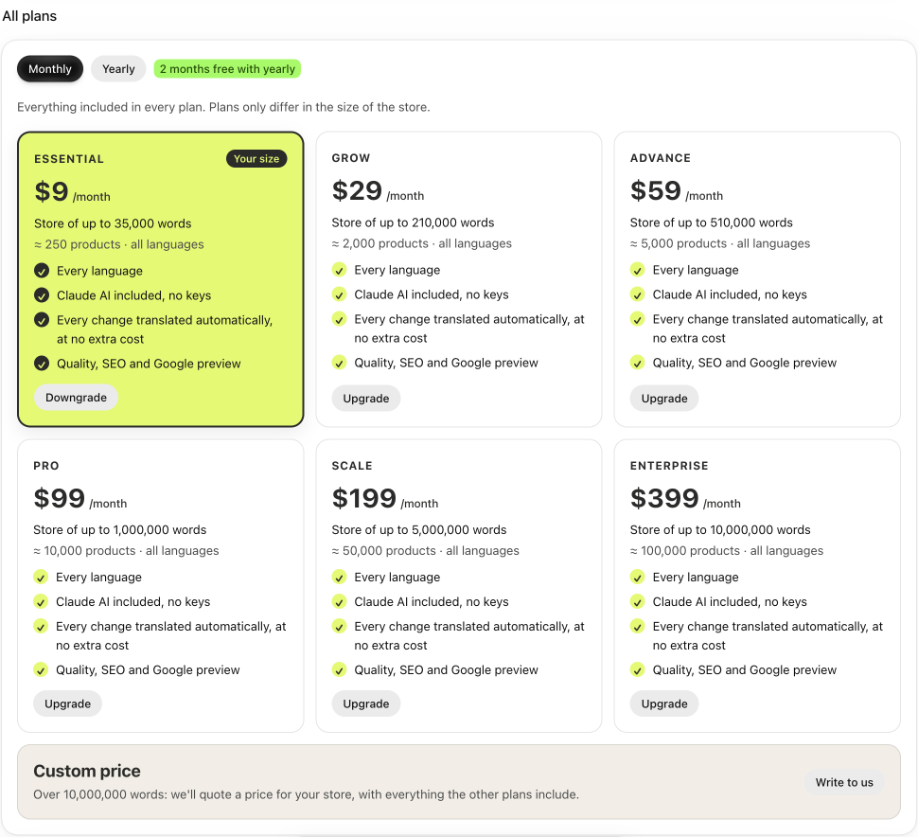
- Open “Plan” and scroll down to “All plans”.
- At the top, choose “Monthly” or “Yearly”.
- On each card, the button says what happens: “Current plan”, “Upgrade” or “Downgrade”.
- Click the one you want. Shopify shows you the new charge: approve it.
- When you return, the app tells you if the change already applies or from what date.
Upgrade
- You can choose the plan that matches your store or any bigger one. It's useful to have room if you know your store is going to grow.
- It applies as soon as you approve it. Shopify charges you the prorated amount.
Downgrade
- You can downgrade to a plan your store fits in, from “All plans”. The app doesn't suggest it: you decide.
- Plans your store doesn't fit in are grayed out, with “Your store is larger”.
- On monthly, it applies as soon as you approve it. On yearly, it starts when the year you already paid for ends.
- We don't downgrade you on our own: you decide.
Good to know
- Adding or removing languages doesn't change your plan: only the size of your store counts.
- If you don't approve the change in Shopify, you stay on your current plan. The app tells you when you return to “Plan”.
- If you're on the trial or have gift days from Empact, you don't lose them when you change plans: the new plan keeps the days you have left.
- If your store grows past its plan, we let you know and you have a month to upgrade: When your store grows.
- Everything about yearly, in Yearly plan.