The glossary holds the words that are never translated, like your brand or a product name, and the ones that are always translated the same way. The AI follows it in every translation.
Add a term
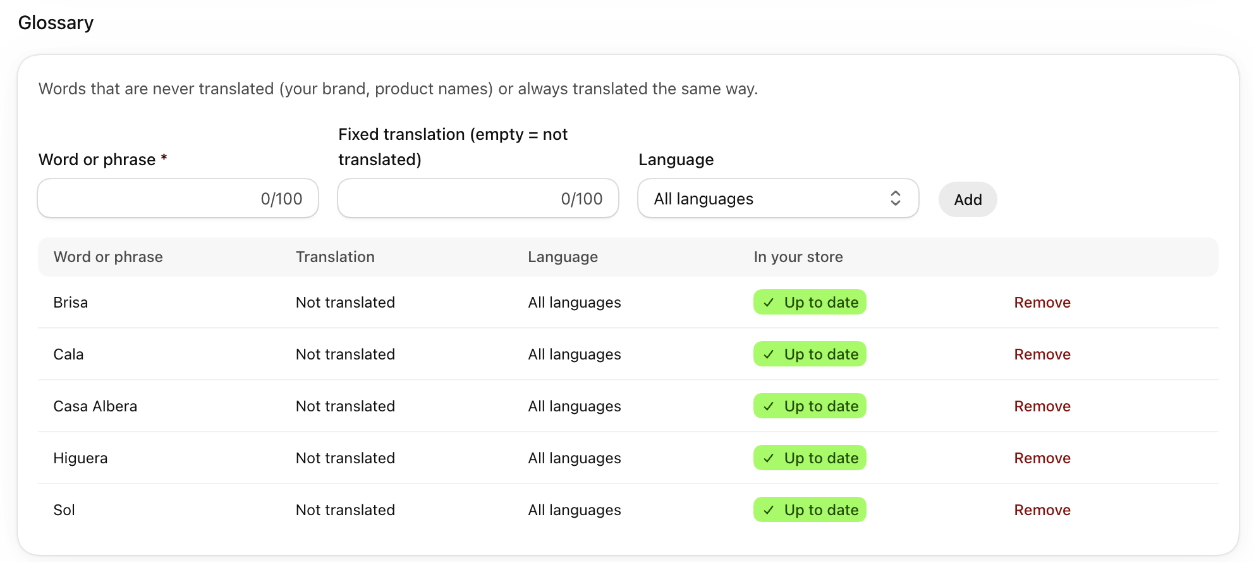
- Go to “Brand and glossary” and scroll down to “Glossary”. You can also get there from “Settings”, with the “Brand, tone and glossary” card, which shows how many terms you have.
- In “Word or phrase”, type the term as it appears in your store.
- In “Fixed translation (empty = not translated)”, type how it's translated. If you leave it empty, it's never translated.
- In “Language”, choose “All languages” or a single one.
- Click “Add”.
Check whether your store follows it
- In the table, the “In your store” column says how each term is doing in what's already translated.
- “Up to date” means every text follows it.
- If not, it tells you how many texts don't follow it and shows you an example.
- Click the fix with AI button, which says how many texts there are. The AI translates them again, now with the glossary.
- The ones you corrected by hand are listed separately and aren't touched.
Good to know
- A term that isn't translated is mandatory: if the AI's translation doesn't keep it, it isn't written to your store and the text goes to “To review”.
- A term with a fixed translation goes as an instruction in every translation. “In your store” warns you if any text doesn't follow it.
- To decide whether a text follows it, the whole word or phrase counts, ignoring capital letters. The exception is names that aren't translated and start with a capital letter: they only count with the capital. If *Fig* is in the glossary, *fig leaf* can be translated.
- It holds 200 terms, of up to 100 characters each.
- Each fix translates up to 500 texts again, and you can do 20 fixes a day. It can be undone in one go for 30 days: Undo a bulk change.
- Translating again doesn't change your price.
- To remove a term, click “Remove”. What's already translated doesn't change.
- If you want the AI to look for the proper names in your store, see Names that aren't translated.
- You can also ask for it in “Ask EmpactAI”: it gets the term ready and you confirm it.