When you create or change something in your store, the app detects it and translates it into all your languages, with your tone and your glossary. You don't have to click anything. What you corrected by hand is never overwritten.
How often it checks
- In about 2 minutes: products and collections. Shopify notifies the app when you save them.
- Every 2 minutes: pages, blogs and their articles, policies, theme texts and sections, menus and your products' custom fields.
- Every 15 minutes: the rest, like filters, shipping and payment methods, and metaobjects.
- Every night: a check of the whole store, in case something slipped through.
How you see it
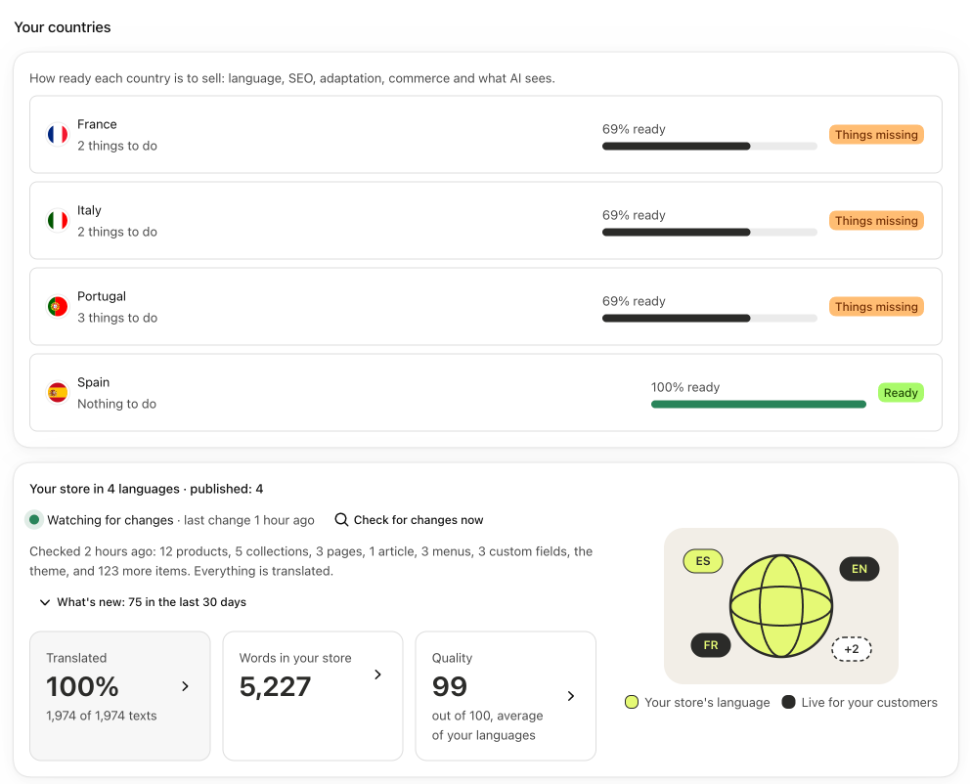
- On “Home”, at the top, you see “Watching for changes” and when the last change was.
- Below it, the updates: each new or changed item, marked “New” or “Changed”, with its step. It starts at “Detected” and ends up translated and published in your languages.
- Each update has “View in store”, so you can see it as a customer does.
- Want to make sure? Click “Check for changes now”. First it looks at what changed recently and answers in seconds. Then it checks the whole store and tells you what it checked.
What it doesn't touch
- What you corrected by hand. If the original changes, the app doesn't overwrite it: it marks it “To review”, with the new suggested translation next to it. See What happens when you change the original.
- What you excluded. See Exclude products and collections.
- Changes that don't touch the text, like price or stock. They aren't translated and don't show in the updates.
Good to know
- If something is waiting, the update says why and has its button: “Upgrade plan” if it doesn't fit in your plan, “Publish” if its language isn't published and “Review” if a text you corrected by hand changed.
- New content shows in your store in the languages that are already published.
- “Check for changes now”: you can click the quick part once a minute. The full check, up to 12 times every 24 hours.
- By email, on Mondays you get a summary of the week if there were updates. Never one email per item. If you don't want it, turn off notifications in “Settings”, under “Email notifications”.
- If you see “Paused” instead of “Watching for changes”, the plan is paused and new content waits. See Your plan is too small now.