Write your version and save it. The text becomes “Edited by hand” and the AI doesn't touch it again. If the original changes one day, the app prepares a suggestion and you decide.
From the item's page
- Find the product, the page or whatever you want to correct in “Translations” and open it. Find a text or paste a page URL explains how.
- If you translate into several languages, choose the language at the top with its button.
- Each field shows the “Original” and, next to it, the translation. Change the text in the box.
- You can change several fields in a row: Shopify's save bar appears at the top.
- Click “Save”.
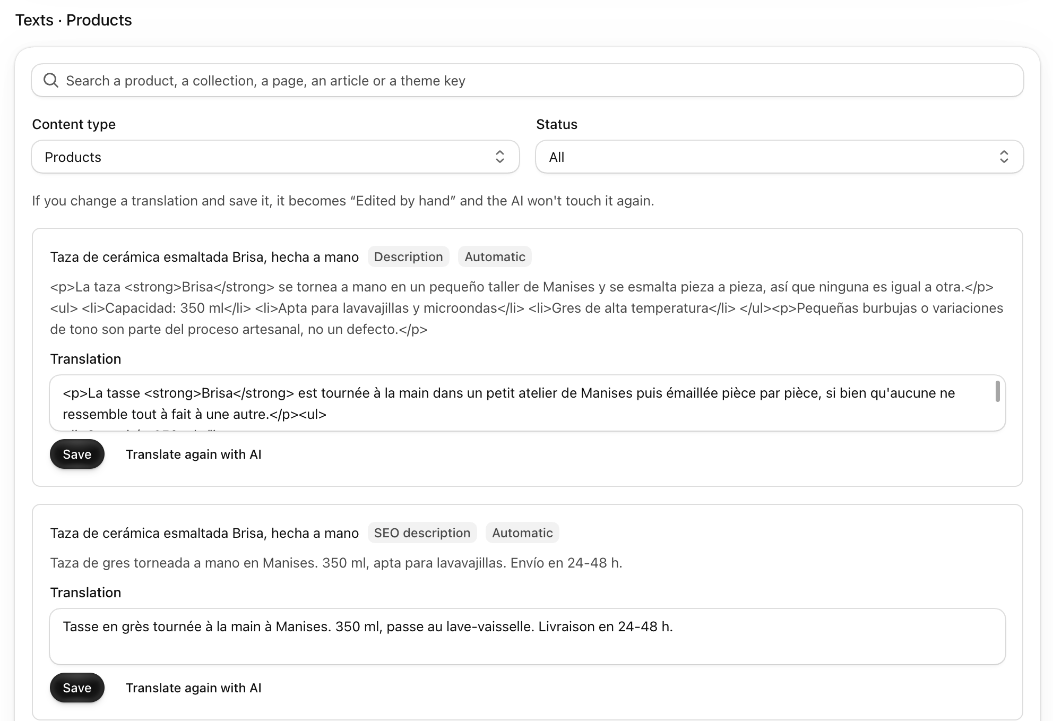
From the language's editor
- Open the language's editor. Open the editor for a language explains how.
- Find the text with “Search” or with the filters.
- Change it in the “Translation” box and click “Save” on that same text.
Good to know
- If you change just one word or a short expression on the item's page, the app checks whether it appears in more texts in that language and offers to change it in all of them. You can apply it or click “Not now”. For bigger changes, use Find and replace across a language.
- You can't save an empty translation: you see “There's an empty text”. Write something or discard that change.
- In texts with formatting (bold, lists, links) you write with the formatting visible. If you need to touch the code, click “Edit HTML”, and “View formatted” to go back.
- Each field keeps its last 5 changes. You see them in its history, with the field's three-dot button. You can undo the last one with “Undo”.
- If you undo your correction and exactly what the AI had written comes back, the text becomes “Automatic” again, as long as the original hasn't changed.
- If someone changes a translation outside the app, in Shopify or with another app, the app notices and protects it too.
- What happens when you change the original explains what happens to your corrections afterward.